

Redesigning Petavue's Data Dictionary
Petavue's Data Dictionary is where RevOps teams and data admins manage the data behind their analytics: sources, tables, columns, and how they relate. As the dataset grew, that workspace hadn't kept up.
I redesigned it around the tasks admins actually needed to do: find a field, understand what it holds, manage it, and connect it to others.
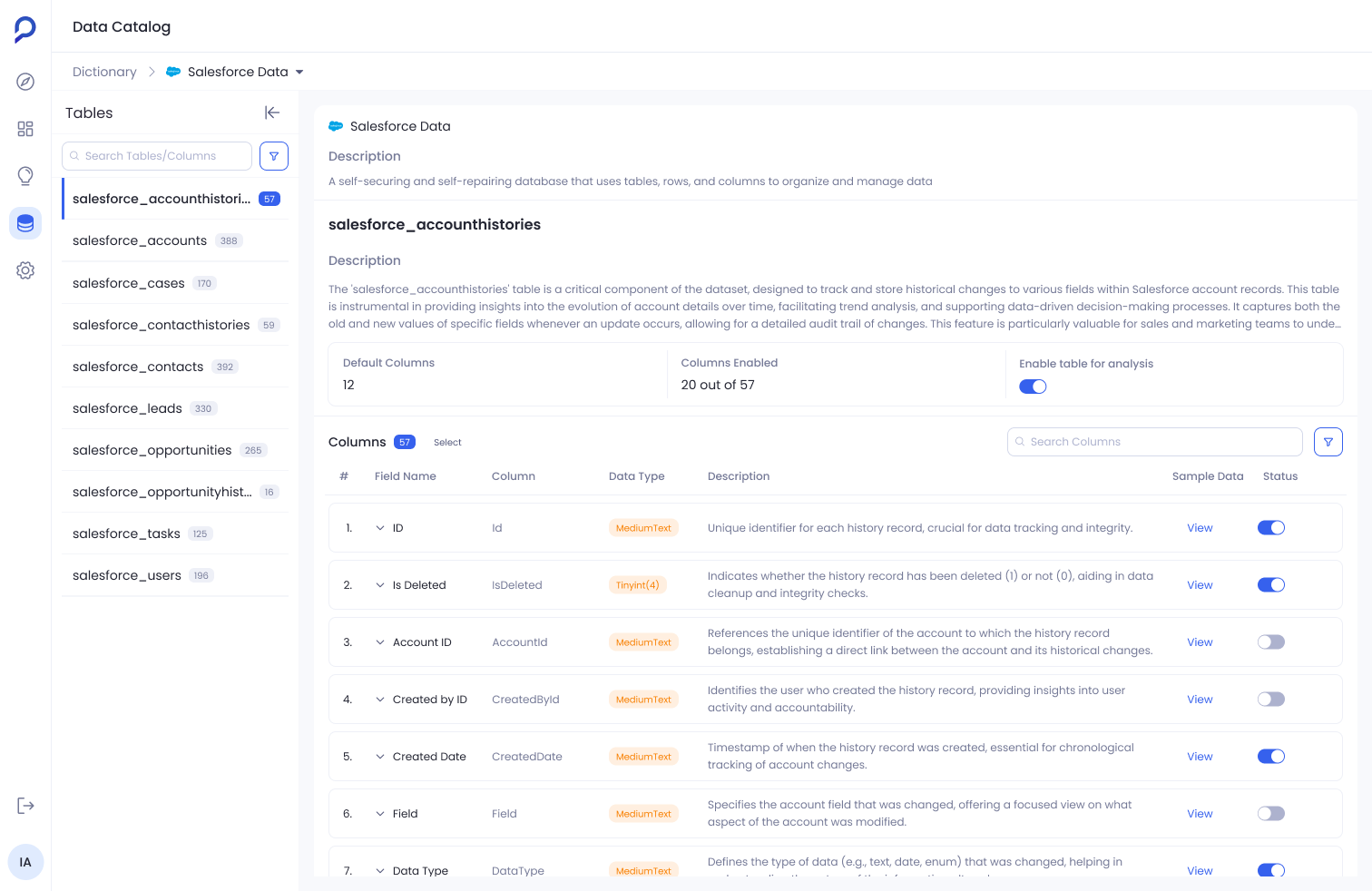
Context
Petavue's Data Dictionary is where admins manage the building blocks behind analytics: data sources, tables, and columns. A single account connects to sources like Salesforce, Marketo, Gong, and Hubspot, each with its own set of tables to configure.
The people using it were RevOps teams and data admins. They understood the business context of the data, but they weren't database engineers.
Data Dictionary was one part of Petavue's data configuration system, alongside a separate Key Definitions workflow for business metrics.
The Problem
Petavue's datasets kept growing. A single Salesforce table could hold 50+ columns, and admins were expected to keep all of it organized: which fields mattered, what they meant, how they related to each other.
The old Dictionary wasn't built for that scale. It lived buried inside Settings, showed one table's columns at a time, and had no way to search across a whole source. Finding a specific field meant already knowing where to look. Managing more than one field at a time meant repeating the same steps over and over.
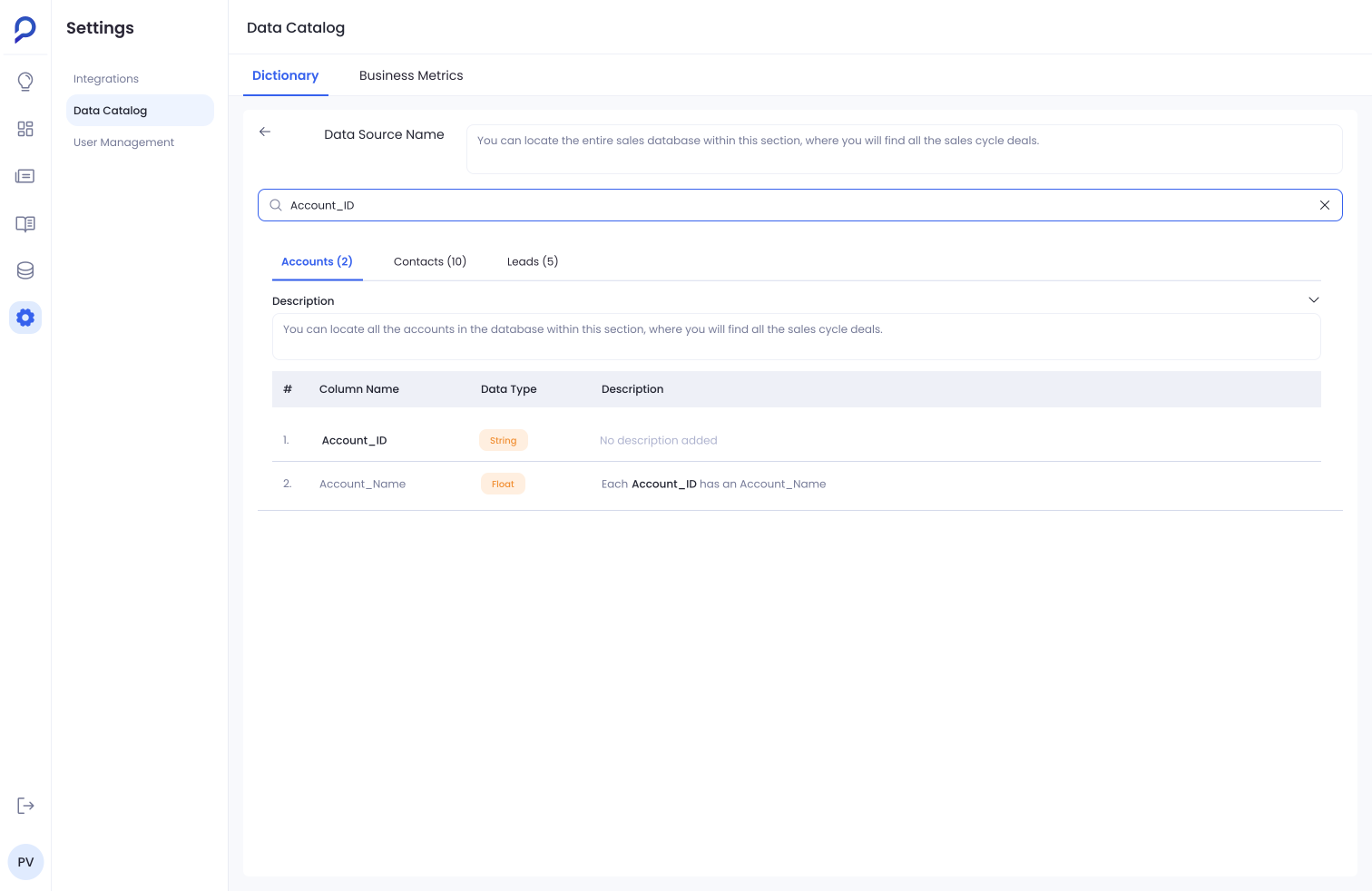
Before: one table's columns at a time, tucked inside Settings.
The data wasn't the problem. Managing it at this scale was.
Design Direction
Rather than treating the Dictionary as a list of fields, I redesigned it around the tasks admins actually needed to perform:
Find. Make it easy to navigate a large, growing dataset.
Understand. Give admins enough context to know what a field actually contains.
Manage. Make routine configuration efficient instead of repetitive.
Connect. Make relationships between fields explicit.
Find: navigating the dataset
A source like Salesforce had a dozen tables, each with dozens of columns. Knowing a field existed didn't mean knowing where to find it.
Sources, tables, and columns became a searchable hierarchy. Each source shows how many of its tables are enabled, and inside a table, columns are searchable.
An admin should be able to go from the entire dataset to one exact field without losing track of where they are.
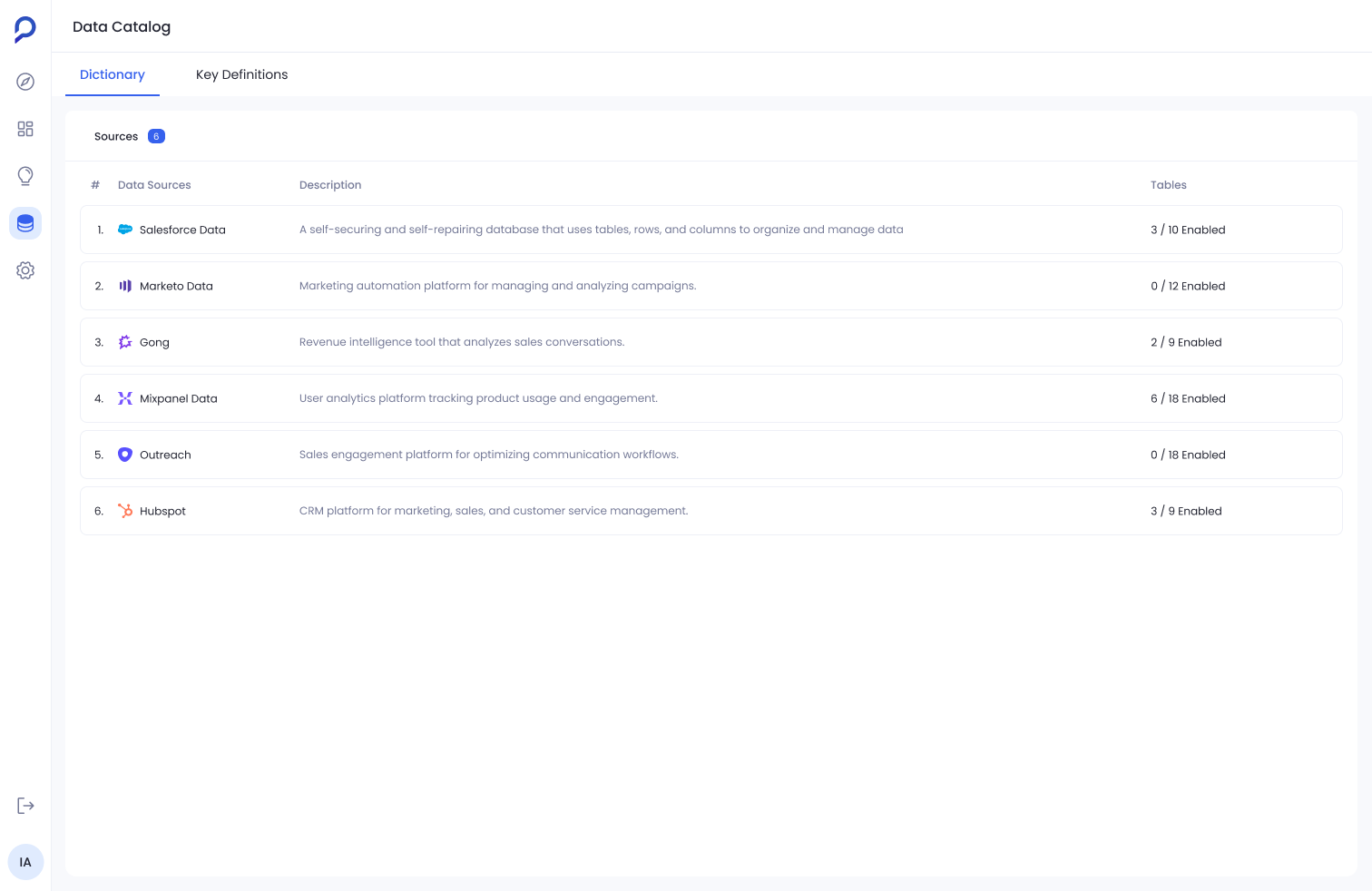
Data sources, the top of the Dictionary's hierarchy.
Understand: sample data
Metadata tells you a field's name and type, but a description doesn't always tell you what's actually inside it.
Sample-data inspection sits directly in the column list. Opening a field shows real values from that column, without leaving the table.
Sometimes the fastest way to understand a field is to look at what's actually in it, not read a description of it.
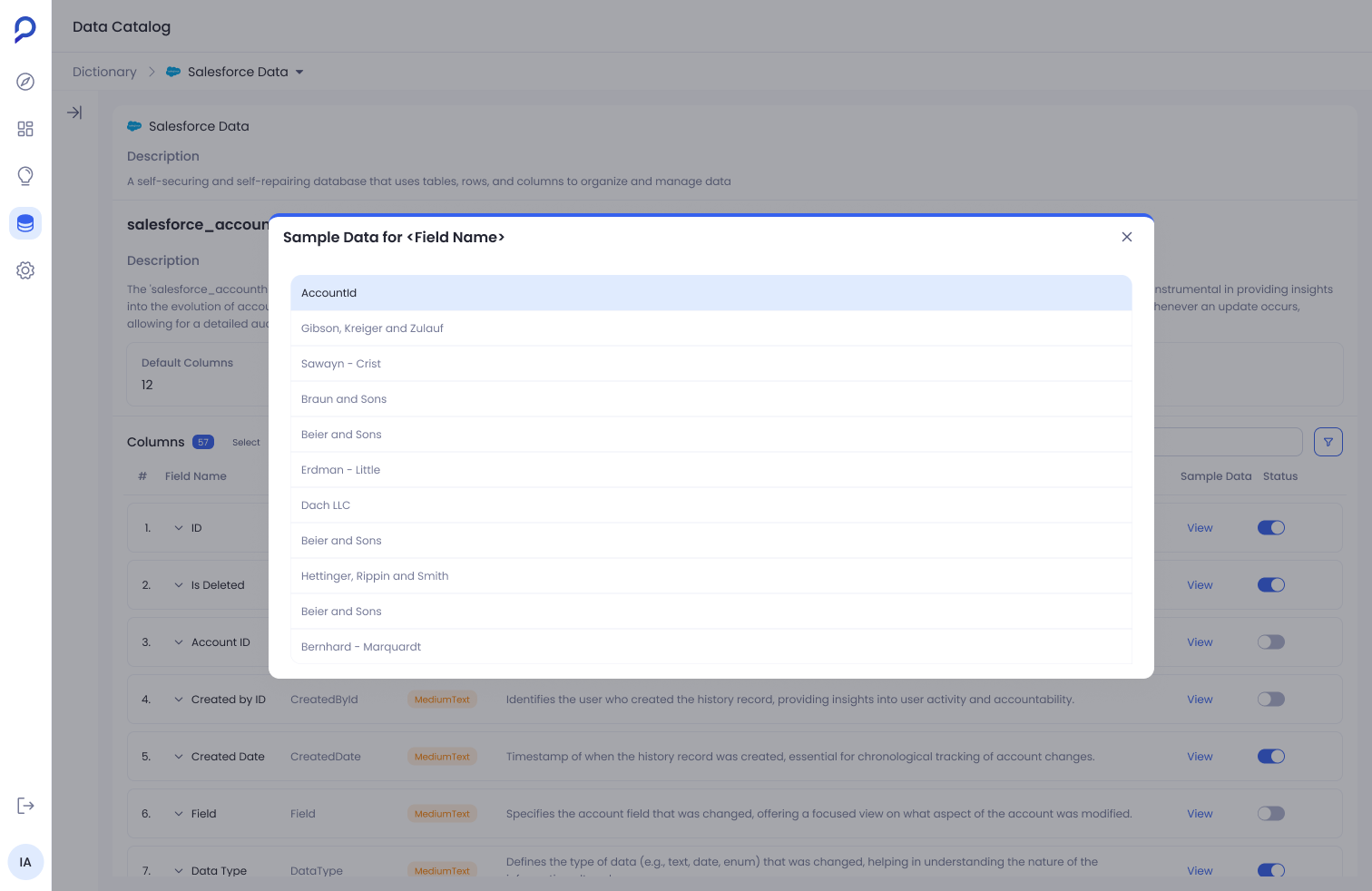
Sample values appear in place, without navigating away from the column list.
Manage: status and bulk actions
A single table could hold 50+ columns. Enabling or disabling them one at a time, every time, turned simple upkeep into repetitive manual work.
Every column got a direct enable/disable status right in the list, a Select mode for acting on more than one column at once, and rows that expand in place for more detail.
Routine configuration should work at the level of the admin's task, a table or a group of fields, not force them to repeat the same click 50 times.
Status and Select turn one-by-one edits into something an admin can do at the table level.
Configure: editing a field
Once an admin found and understood a field, editing its metadata meant leaving the Dictionary for a separate flow.
Editing happens in place. A column's name, description, tags, and format are all editable from a panel opened directly off its row.
Configuring a field is part of the same task as finding and understanding it. It shouldn't be a different destination.
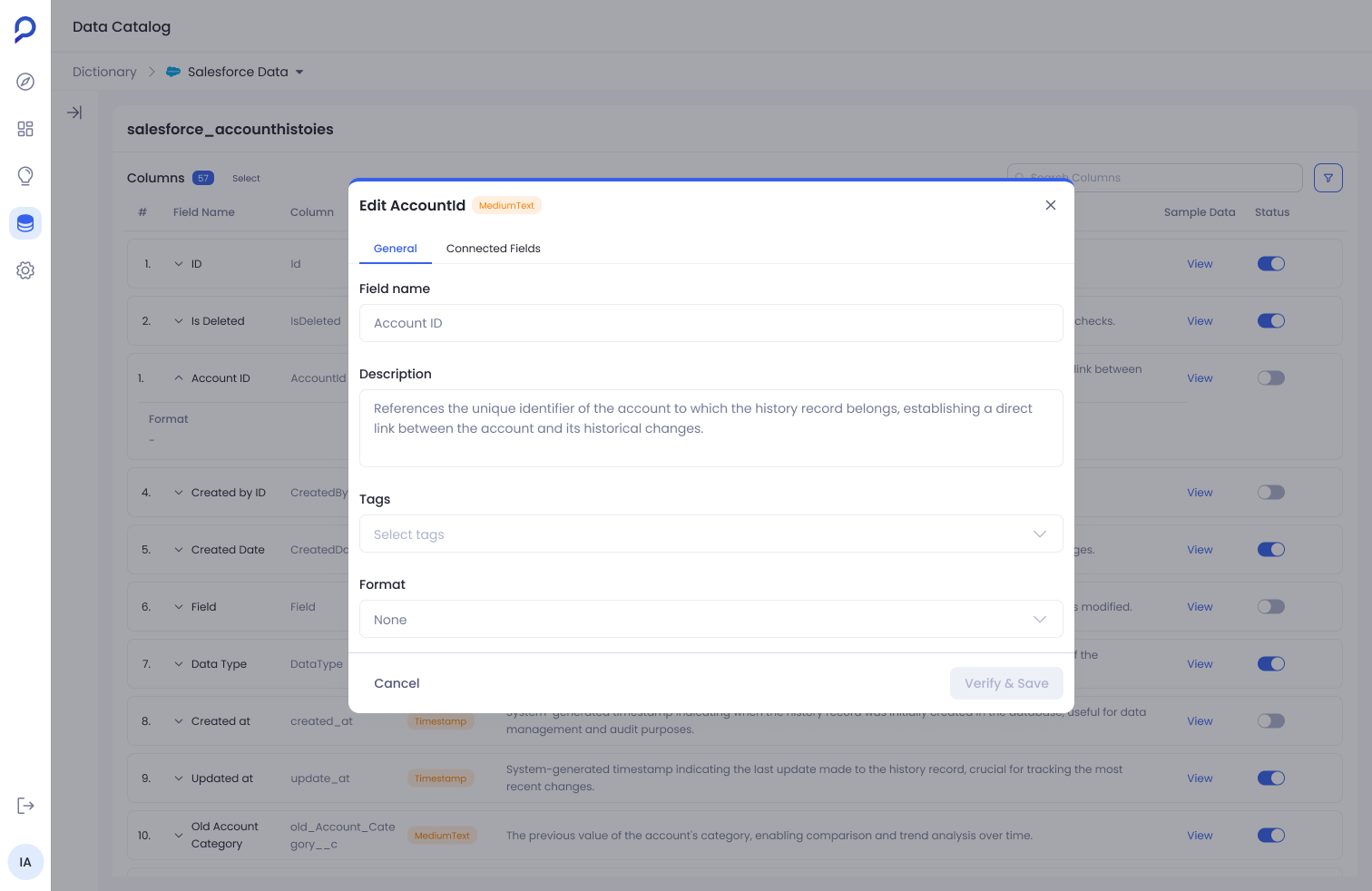
Editing a field's metadata without leaving the table it belongs to.
Connect: connected fields
Fields in one table often referred to records in another, an account ID pointing back to the accounts table, for instance, but that relationship lived in people's heads, not in the product.
Connected Fields let an admin state that relationship directly: pick the source column, the matching column in the other table, and give the connection a name.
Rather than asking admins to think in database syntax, the interaction breaks the relationship into a few concrete decisions they can understand.
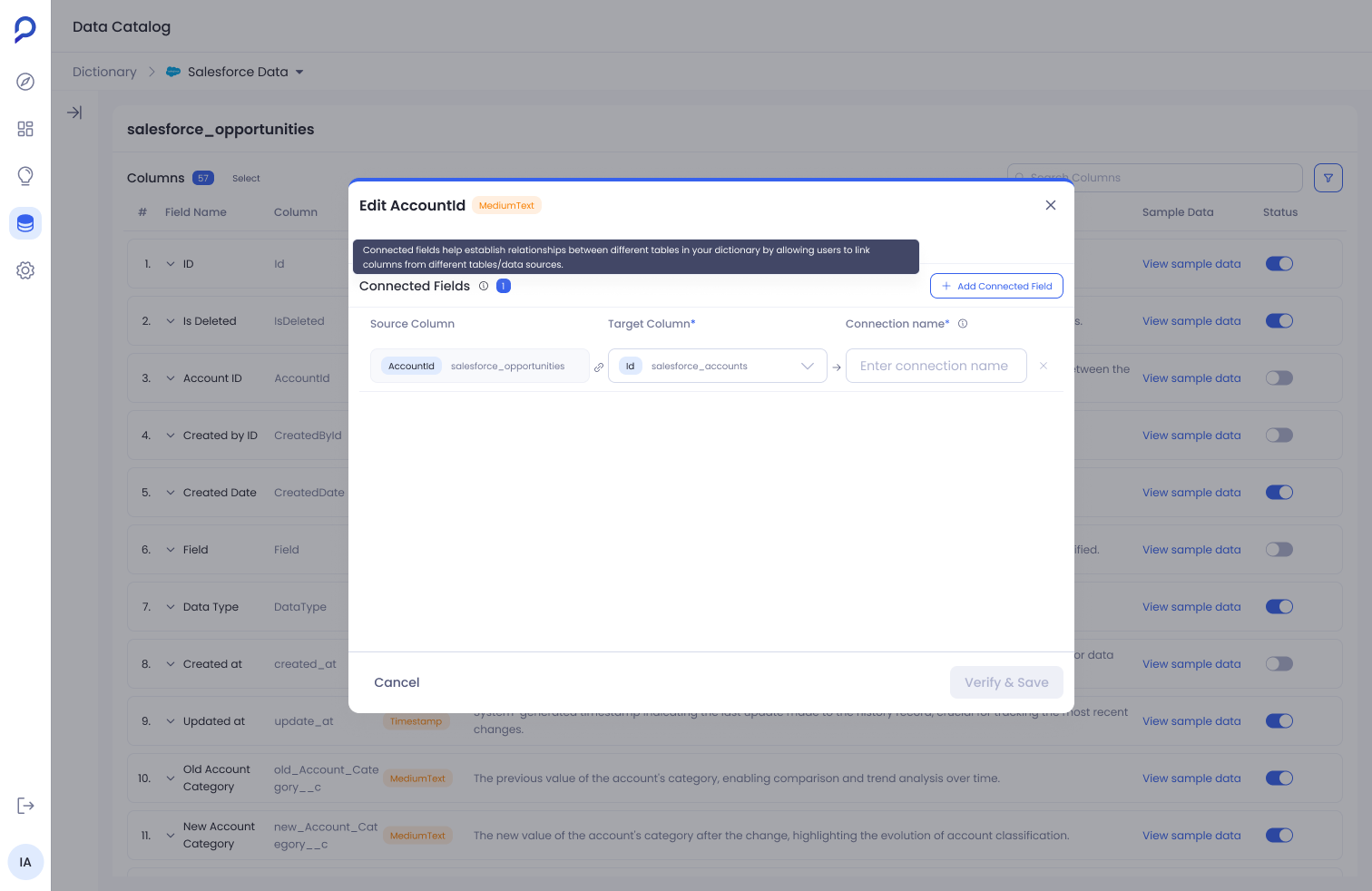
A column's relationship to another table, defined as source, target, and name.
Putting It Together
These weren't four isolated features. Together, they turned the Dictionary from a place to view data into a workspace for managing it: find a field, understand what it holds, manage it on its own or as a group, connect it to what it relates to.
Each one solved a specific piece of friction on its own, but they share the same reasoning: give admins exactly enough context, at the point they need it, to make a decision confidently.
Outcome
The redesigned Dictionary gave admins a more complete workflow for managing their data from one place: easier navigation across a growing dataset, direct data inspection, faster bulk management, contextual field configuration, and explicit relationships between fields.
Reflection
The hardest part wasn't exposing more information. It was deciding how much complexity an admin actually needed at each step. I learned that simplifying a technical product doesn't mean hiding its complexity, it means organizing that complexity around the decisions users need to make.